
What is ImageTrans Chrome Extension?
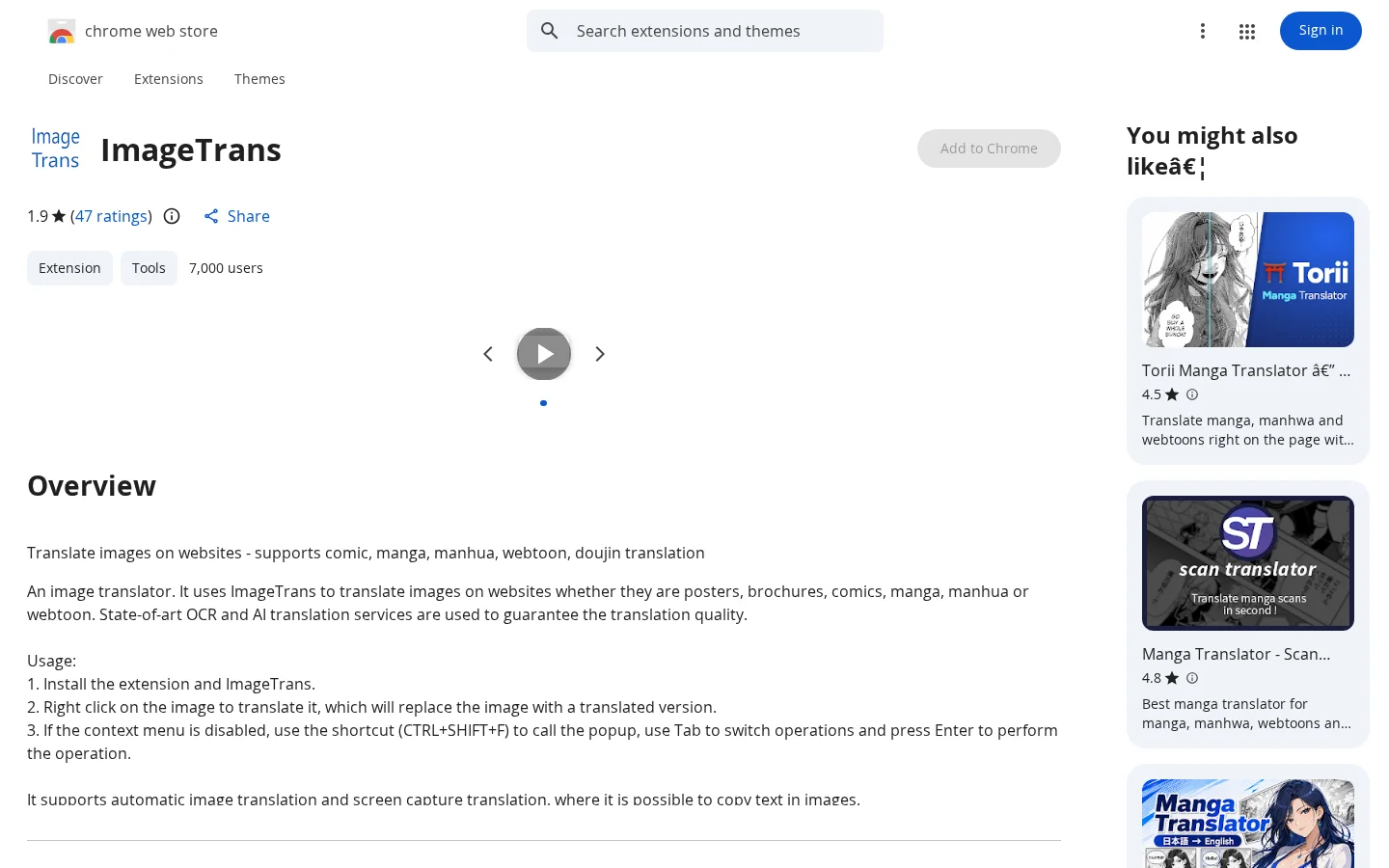
The ImageTrans Chrome extension allows users to right-click any image on a webpage to instantly trigger translation, replacing the original image with a version containing the translated text. If the right-click menu is disabled, users can press Ctrl+Shift+F to bring up a pop-up window, navigate using the Tab key, and execute actions with Enter. It supports automatic image translation as well as screenshot-based translation, and enables copying recognized text directly from within the image.
Key features
Supports image translation across multiple genres, including manga, Japanese anime, Chinese comics, webtoons, and fan-made works.
Provides Japanese kana annotations and Chinese pinyin annotations to aid language learning.
Use cases and audience
Suitable for manga and light novel readers, multilingual learners, localization translators, and users who need to quickly extract text from images.
- Translate image content such as manga panels, light novel illustrations, posters, and brochures found on web pages.
- Supports Japanese furigana and Chinese pinyin annotations to aid language learning
- Automatic image translation and screenshot translation, with support for copying text from images
Images found on web pages, including manga, manhua, webtoons, posters, brochures, and more.
Images with translated text, supporting both Japanese kana and Chinese pinyin annotations.
Frequently asked questions
Is it mandatory to install the ImageTrans desktop software?
By default, the ImageTrans desktop software must be installed; PaddleOCR can also be used as an alternative, but its accuracy, speed, options, and language support are limited.
Does it support languages other than Chinese and English?
Currently, only two interface languages are supported: English and Simplified Chinese (Languages: English, 中文(中国)).
How to use
- 01
Install this extension along with the accompanying ImageTrans desktop software
- 02
Right-click on a web page image and select “Translate”; the image will be replaced with its translated version
- 03
If the right-click menu is unavailable, press Ctrl+Shift+F to bring up a pop-up window; use Tab to switch between options and Enter to execute
- 04
You can configure the OpenAI API (such as ChatGPT or Gemini) to improve translation quality
Benefits and limitations
Benefits
- Achieve high-quality translation using advanced OCR and machine translation
- Supports multiple image formats
- Convenient integration via the context menu
- Provides accessible keyboard shortcuts
- Helps in understanding foreign-language content
Limitations
- Requires installation of the ImageTrans desktop application
- Some websites may disable the context menu
- Translation quality depends on the accuracy of OCR and machine translation
Official website & sources
Updated on 2026-10-30

